
유튜브 자막 다는 법 2가지, SRT 업로드 vs 영상에 새기기
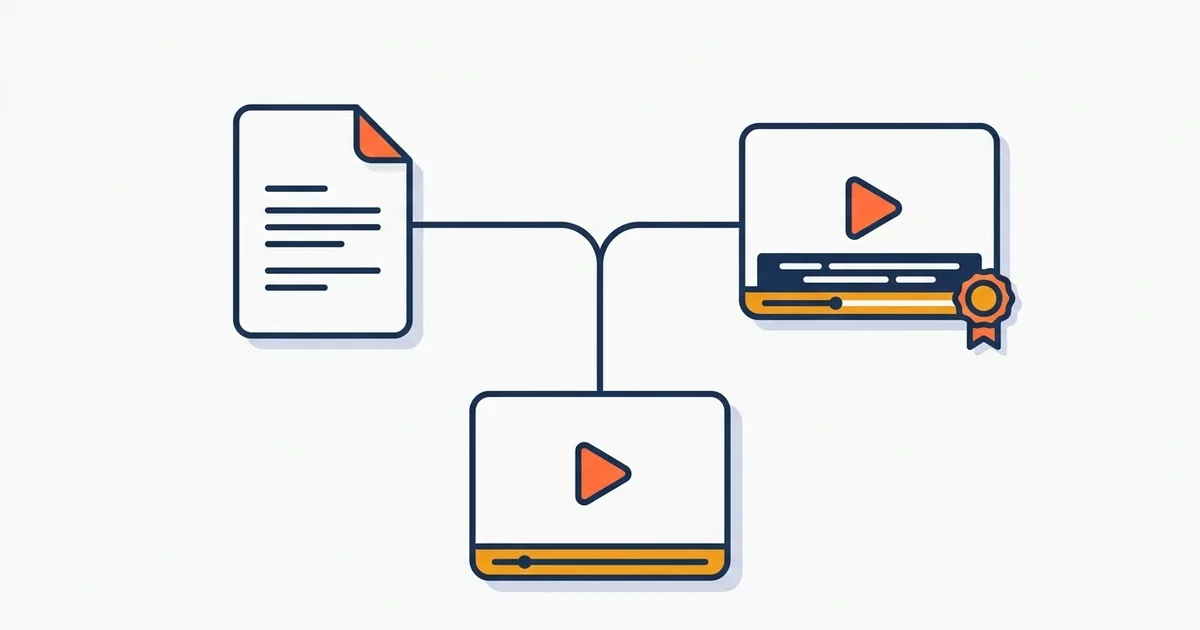
핵심 요약: 검색 노출과 다국어가 목적이면 SRT 파일 업로드, 디자인된 예쁜 자막이 목적이면 영상에 새기기(번인)입니다. 가장 좋은 건 둘 다 하는 것: 디자인 자막을 구운 영상을 올리고, SRT도 함께 업로드하는 방식입니다.
유튜브에 자막을 다는 방법은 크게 두 갈래입니다. 둘은 목적이 완전히 달라서, 차이를 알면 선택이 쉬워집니다.
먼저 한눈에 비교하면 이렇습니다.
| 기준 | SRT 업로드(소프트) | 영상에 새기기(번인) |
|---|---|---|
| 검색 노출 | 됨 | 안 됨 |
| 디자인 | 불가(기본 스타일) | 자유 |
| 다국어 | 파일 여러 개 | 언어별 영상 |
| 쇼츠 | 거의 안 보임 | 표준 |
방법 1: SRT 파일 업로드 (소프트자막)
SRT는 "몇 초부터 몇 초까지 이 문장"이 적힌 단순한 자막 파일입니다. 유튜브 스튜디오에서 영상에 붙이면 시청자가 자막 버튼으로 켜고 끌 수 있어요.
장점
- 검색 노출: 유튜브와 구글이 자막 텍스트를 읽습니다. 영상 내용이 검색어와 매칭될 기회가 늘어요
- 다국어: 같은 영상에 한국어·영어·일본어 SRT를 여러 개 붙일 수 있습니다
- 접근성: 청각이 불편한 시청자, 소리 끄고 보는 시청자 모두 커버
- 영상 화면을 가리지 않음
단점
- 디자인 불가능: 시청자 설정에 따라 보이는 기본 스타일뿐
- 쇼츠에서는 사실상 안 보임 (시청자가 잘 켜지 않음)
올리는 법: 유튜브 스튜디오 → 자막 → 언어 선택 → 파일 업로드. SRT 파일은 자막 프로그램에서 "SRT 내보내기"로 만들면 됩니다. bakecut도 받아쓰기 결과를 SRT로 저장할 수 있어요.
방법 2: 영상에 새기기 (하드자막, 번인)
자막을 영상 픽셀에 직접 구워서 내보내는 방식입니다. 요즘 유튜브에서 보는 예능 스타일 자막, 단어 강조, 이모지 효과는 전부 이 방식이에요.
장점
- 디자인 자유: 폰트, 색, 배경 박스, 단어별 강조, 애니메이션 전부 가능
- 모든 플랫폼에서 똑같이 보임 (쇼츠·릴스·틱톡 포함)
- 시청자가 끌 수 없으니 연출 의도가 100% 전달
단점
- 시청자가 끌 수 없음 (장점이자 단점)
- 검색 엔진이 자막 텍스트를 읽지 못함
- 수정하려면 영상을 다시 내보내야 함
자세한 기술적 차이는 하드자막 vs 소프트자막에서 다룹니다.
정답: 둘 다 하기
영상을 꾸준히 만든다면 이 조합이 가장 강력합니다:
- 자막 프로그램에서 받아쓰기 → 오타 수정
- 디자인 자막을 영상에 구워서 업로드 (시청 경험)
- 같은 받아쓰기 결과를 SRT로도 내보내서 유튜브에 업로드 (검색 노출 + 접근성)
받아쓰기는 한 번이고 내보내기만 두 번이라, 추가 작업은 1분이 안 됩니다. 받아쓰기 자체를 잘 뽑는 법은 자막 자동 생성 정확도 높이는 법을 참고하세요.
유튜브 자동 자막만 믿으면 안 되나?
유튜브가 공짜로 만들어주는 자동 자막도 소프트자막입니다. 없는 것보다 훨씬 낫지만, 오타가 그대로 노출되고 문장 구분이 어색합니다. 채널의 첫인상을 생각하면 받아쓰기 결과를 한 번 교정해서 SRT로 올리는 쪽을 권합니다.
정리: 한 번 받아쓰고 두 번 내보내기
bakecut이면 이 정석 조합이 한 흐름으로 끝납니다. AI 받아쓰기 후 디자인 자막을 영상에 굽고, 같은 결과를 SRT로도 저장해서 유튜브에 올리면 시청 경험과 검색 노출을 동시에 잡을 수 있어요.
자주 묻는 질문
SRT 파일은 무료로 어떻게 만드나요?
자막 프로그램(bakecut, Vrew 등)에서 자동 받아쓰기 후 SRT로 내보내면 됩니다. 메모장에 직접 타이핑할 수도 있지만 타이밍을 손으로 맞추는 건 비추천입니다.
쇼츠에도 SRT를 올릴 수 있나요?
기술적으로는 붙지만 쇼츠 시청자는 자막 버튼을 거의 누르지 않습니다. 쇼츠는 화면에 구운 자막이 사실상 필수입니다. 스타일 기준은 쇼츠 자막 가이드를 보세요.
하드자막을 넣으면 유튜브 검색에 불리한가요?
하드자막 자체는 불리하지 않지만, 검색에 도움되는 텍스트 정보가 없을 뿐입니다. 그래서 하드자막 영상에도 SRT를 같이 올리는 걸 권합니다.
이미 올린 영상의 자막을 고칠 수 있나요?
SRT(소프트자막)는 언제든 교체할 수 있습니다. 구운 자막은 영상 자체를 다시 올려야 하니, 업로드 전에 오타 확인을 꼭 하세요.
영상 자막, 업로드 없이 내 컴퓨터에서.
단어 하나하나 꾸밀 수 있는 AI 자막 편집기